
How to Keep Slack Always Active on Desktop
A complete guide to preventing Slack's 10-minute idle timeout on desktop. Learn what actually works and what doesn't.
Slack marks you as "away" after 10 minutes of inactivity. There's no setting to change this. Here's what you can do about it on desktop.
How Slack's Idle Detection Works
According to Slack's official documentation, your status automatically changes to away after 10 minutes of desktop inactivity.
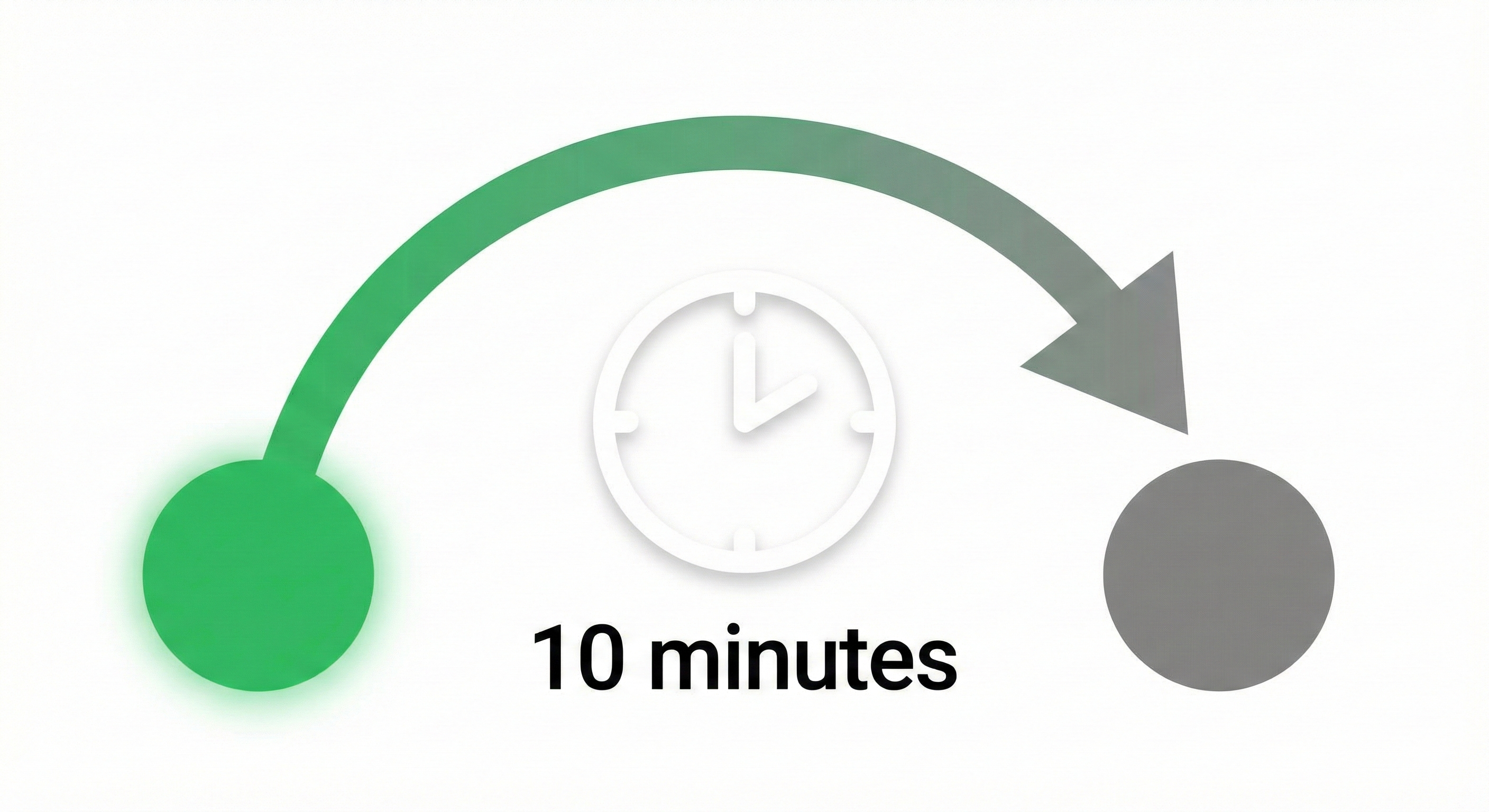
What counts as "activity" is clicking, typing, or scrolling within Slack specifically. Working in other apps doesn't count. Reading a document doesn't count. Being on a video call outside Slack doesn't count.
The manual "Set yourself as active" button doesn't override this timer. It only sets your current status. The countdown restarts the moment you stop interacting with Slack.
Methods That Actually Work
1. Mouse Jigglers
A physical USB mouse jiggler simulates optical mouse movement. This resets the system's idle timer, which in turn affects Slack's detection.
There are two types:
- • Hardware jigglers: USB devices that physically move or simulate cursor movement
- • Software jigglers: Apps like AutoHotKey or Mouse Jiggler that automate cursor movement
- • Slack Always Active - Detects inactivity and maintains active status
- • AlwaysOnline - Customizable scheduling for online presence
- • Tab Reloader - Refreshes the Slack tab periodically
Software jigglers are free but may be flagged by corporate monitoring software. Hardware jigglers are harder to detect but cost money.
2. Browser Extensions
If you use Slack in a web browser, several extensions can help:
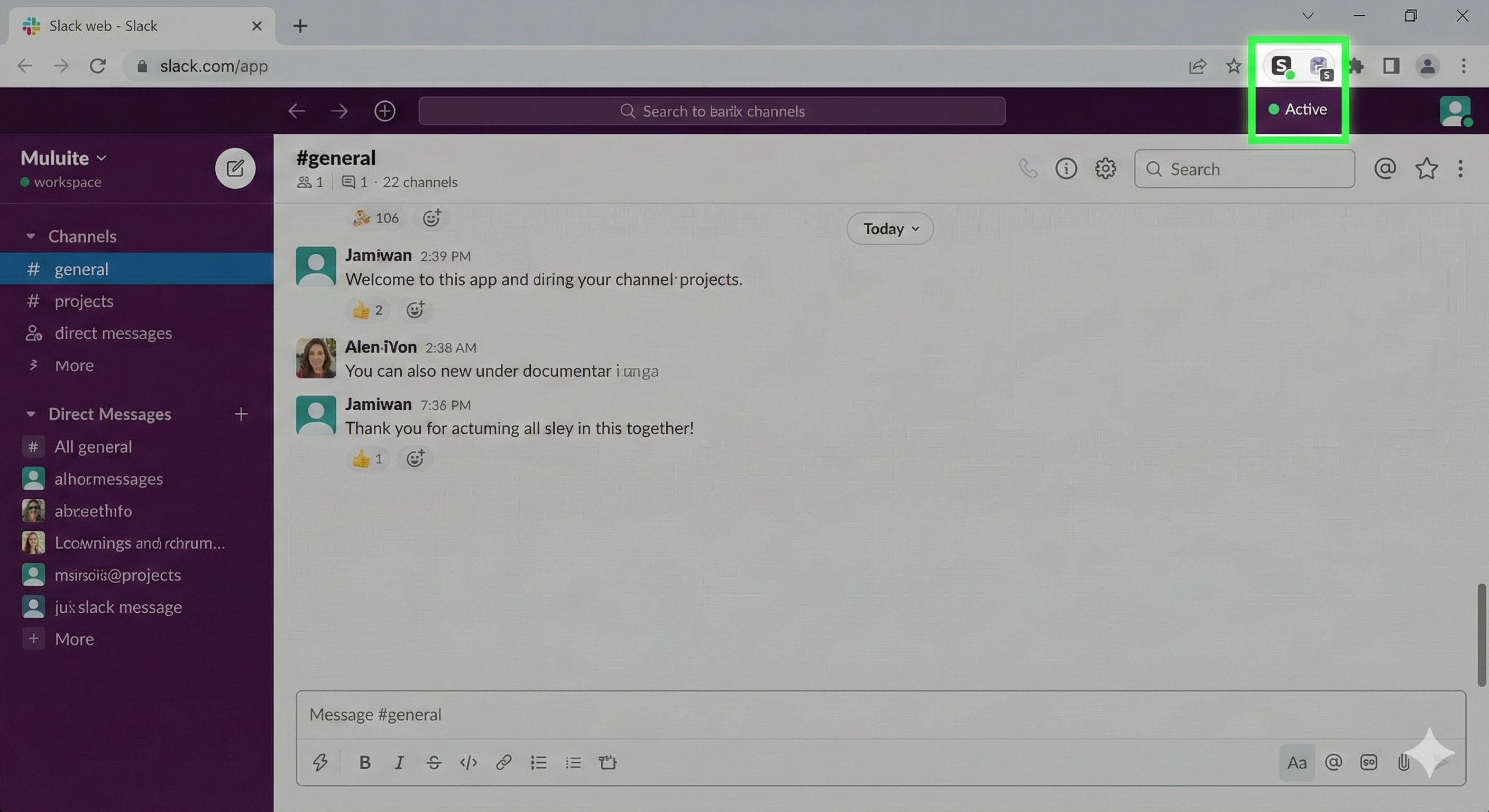
Note: Extensions come and go. The "Slack Always Active" extension was removed from the Chrome Web Store in July 2024. Check current availability before relying on this method.
3. Multi-Device Usage
Keeping Slack open on multiple devices can help maintain your status. If your desktop goes idle, activity on your phone or tablet keeps you active.
This works because Slack's presence system checks across all your connected devices. One active session anywhere keeps your status green.
4. Keep Slack in a Huddle
Joining or starting a Slack huddle (audio call) keeps you marked as active for the duration. Some people start a solo huddle just for this purpose.
This works but consumes resources and may look odd if someone notices you're in a call alone.
5. API-Based Services
Some third-party services connect to Slack's API and periodically update your presence. This happens server-side, so your computer can be off entirely.
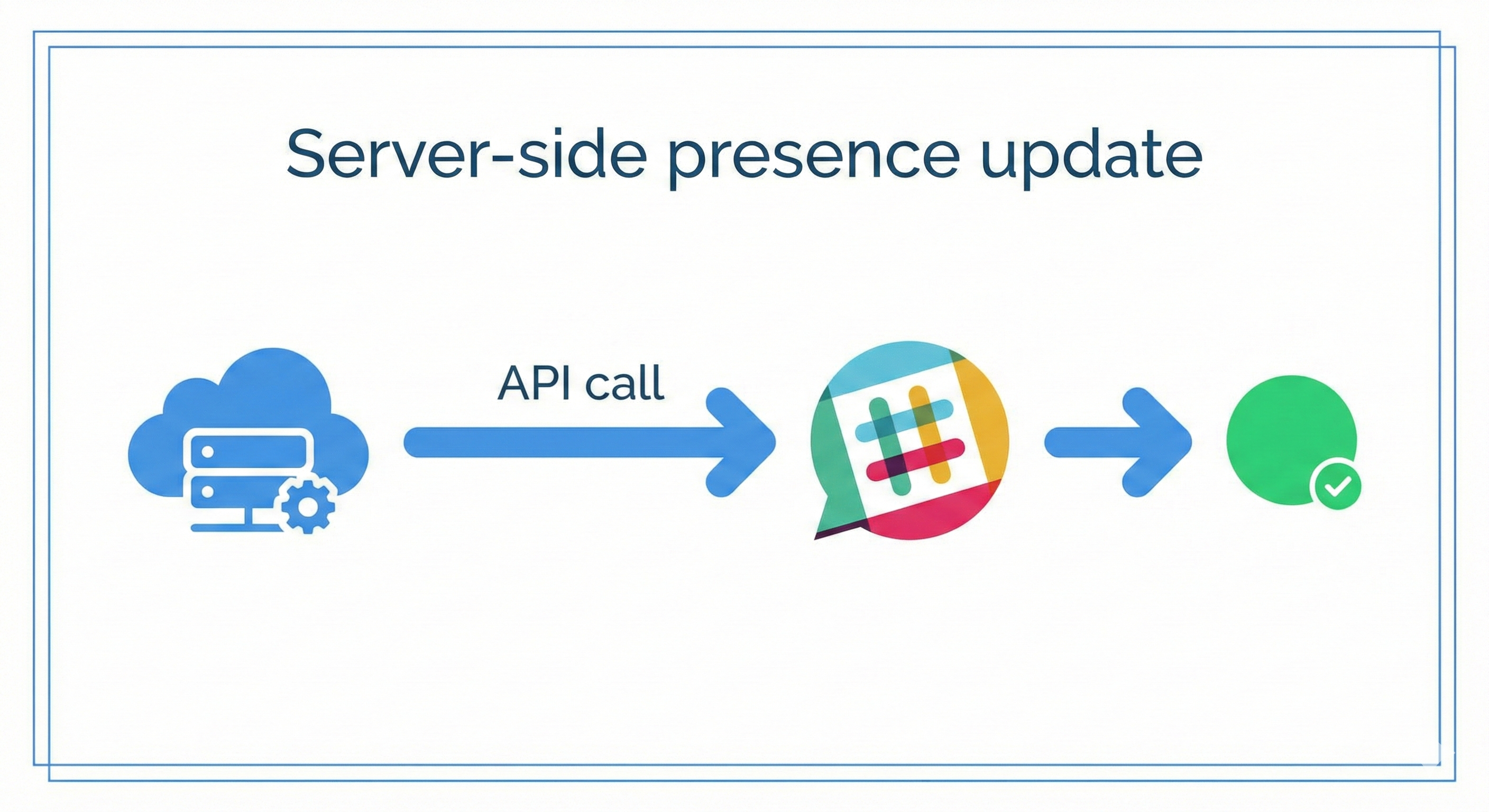
These services typically require you to provide authentication tokens. Research the security implications before using them.
Methods That Don't Work
Never appear "away" on Slack again
Cloud-based. No downloads. Works 24/7 even when your laptop is off.
Keeping Your Computer Awake
Apps like Caffeine (Windows/Mac) or Amphetamine (Mac) prevent your computer from sleeping. They don't prevent Slack's idle timer.
Your Mac can be wide awake and Slack will still mark you away after 10 minutes.
Playing a Video
Same problem. A video playing keeps your screen on but doesn't interact with Slack.
Setting a Custom Status
A custom status like "In a meeting" or "Working from home" doesn't change your active/away indicator. You'll still get the gray dot.
System Settings to Check
Disable Power Saving
Some systems aggressively suspend background apps. Check these settings:
Windows:
macOS:
Linux:
Keep Slack Running
This sounds obvious, but closing the Slack window (not just minimizing) will set you to away. Make sure Slack runs in the background or system tray.
What About Work Policies?
Using tools to appear active when you're not may violate your company's policies. Some organizations have explicit rules against presence manipulation.
Corporate monitoring software can detect mouse jigglers and automation tools. Browser extensions leave traces in extension logs.
Consider the risks before implementing any of these methods on a work device.
The Simplest Solution
Never appear "away" on Slack again
Cloud-based. No downloads. Works 24/7 even when your laptop is off.
If you need to stay active during specific hours without constant mouse movement, a service that handles this server-side removes the need for local software or hardware.
Slack Green runs in the cloud and keeps your status active based on your schedule. No software to install. No devices to manage. No traces on your work computer.
Set your working hours and forget about it.
Stop Jiggling Your Mouse.
Join hundreds of remote workers who never worry about their Slack status. Set it up once, stay green forever.
Related Articles
How to Fake Slack Status (Without Getting Caught)
Looking to fake your Slack status? Learn why people do it, the risks involved, and discover legitimate alternatives that actually work.
How to Always Stay Active on Slack?
Learn how Slack detects inactivity and discover reliable methods to maintain your active status without constantly wiggling your mouse.
How to manage Slack's Out of Office Message
Learn how to set a Slack out of office message to notify teammates when you're away. Learn how it works with a step-by-step guide covering status updates, automatic replies, and best practices.