
How to manage Slack's Out of Office Message
Learn how to set a Slack out of office message to notify teammates when you're away. Learn how it works with a step-by-step guide covering status updates, automatic replies, and best practices.
Taking time off shouldn't mean leaving your team in the dark. A well-crafted Slack out of office message ensures colleagues know when you're unavailable, prevents unnecessary delays, and helps maintain smooth team communication while you're away.
Whether you're heading on vacation, attending a conference, or simply taking a personal day, this guide walks you through every option Slack offers for managing your availability—from quick status updates to automated workflows.
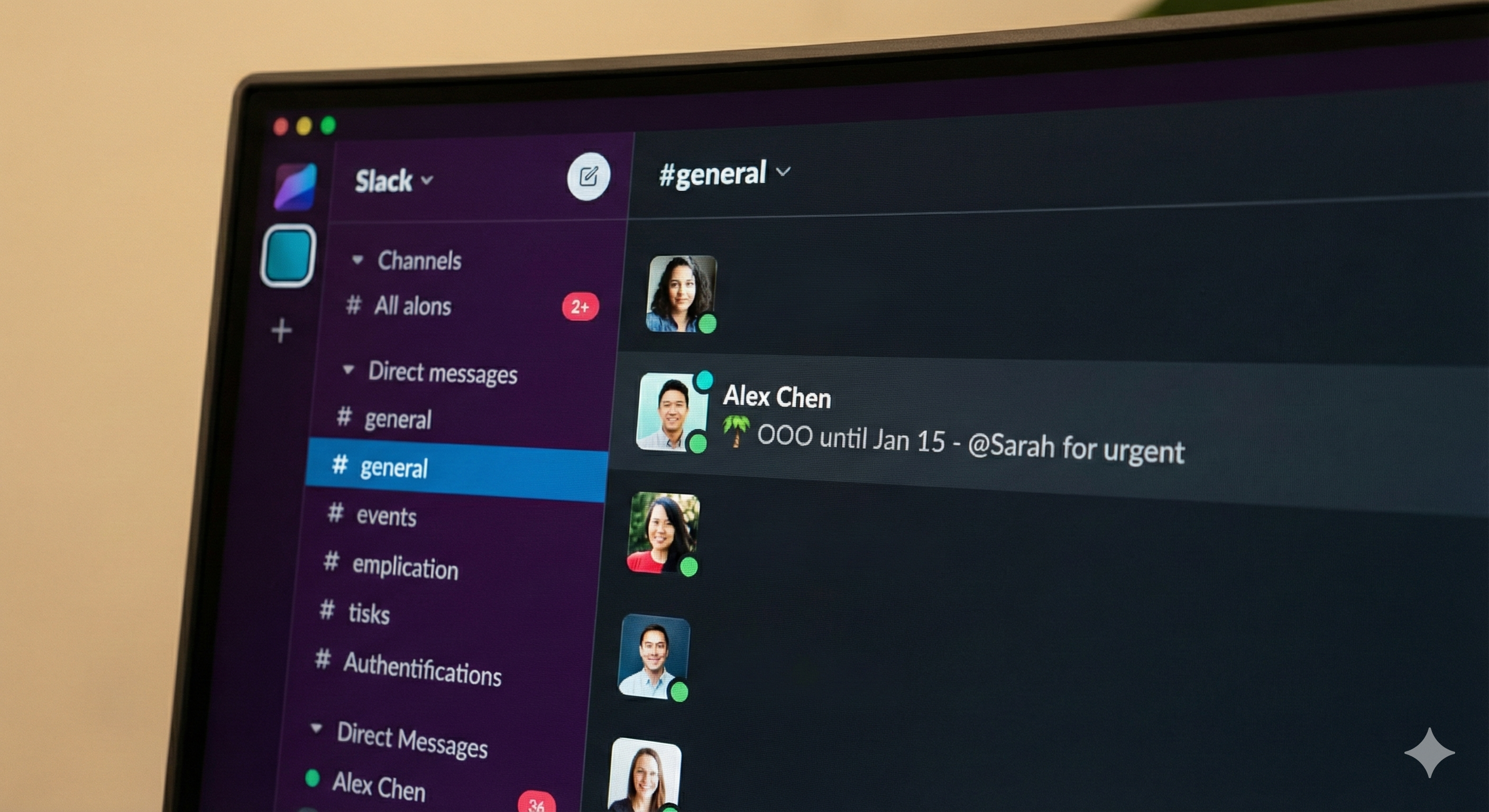
How Slack Handles Out of Office Communication
Unlike traditional email, Slack doesn't have a built-in "out of office auto-reply" feature in the classic sense. Instead, it offers several tools that work together to communicate your availability:
- • Custom status messages that display next to your name
- • Pause notifications to avoid disturbances during time off
- • Status scheduling to automate when your status changes
- • Workflow Builder for automated responses (on paid plans)
- • Third-party integrations that add auto-reply functionality
- Click your profile picture in the top-right corner of Slack
- Select Update your status
- Choose a preset like "Vacationing" or create a custom message
- Pick an emoji that represents your situation (🌴, 🏖️, or ✈️ work well)
- Set a Clear after time so your status resets automatically
- Click Save
- • Your return date: "Back Jan 15"
- • Who to contact: "Ping @Sarah for urgent items"
- • Brief context: "On vacation - limited access"
Understanding these options helps you choose the right approach for your situation.
Setting Your Slack Status to Out of Office
The simplest way to indicate you're away is by setting a custom status. This message appears next to your name throughout Slack, giving teammates immediate context about your availability.
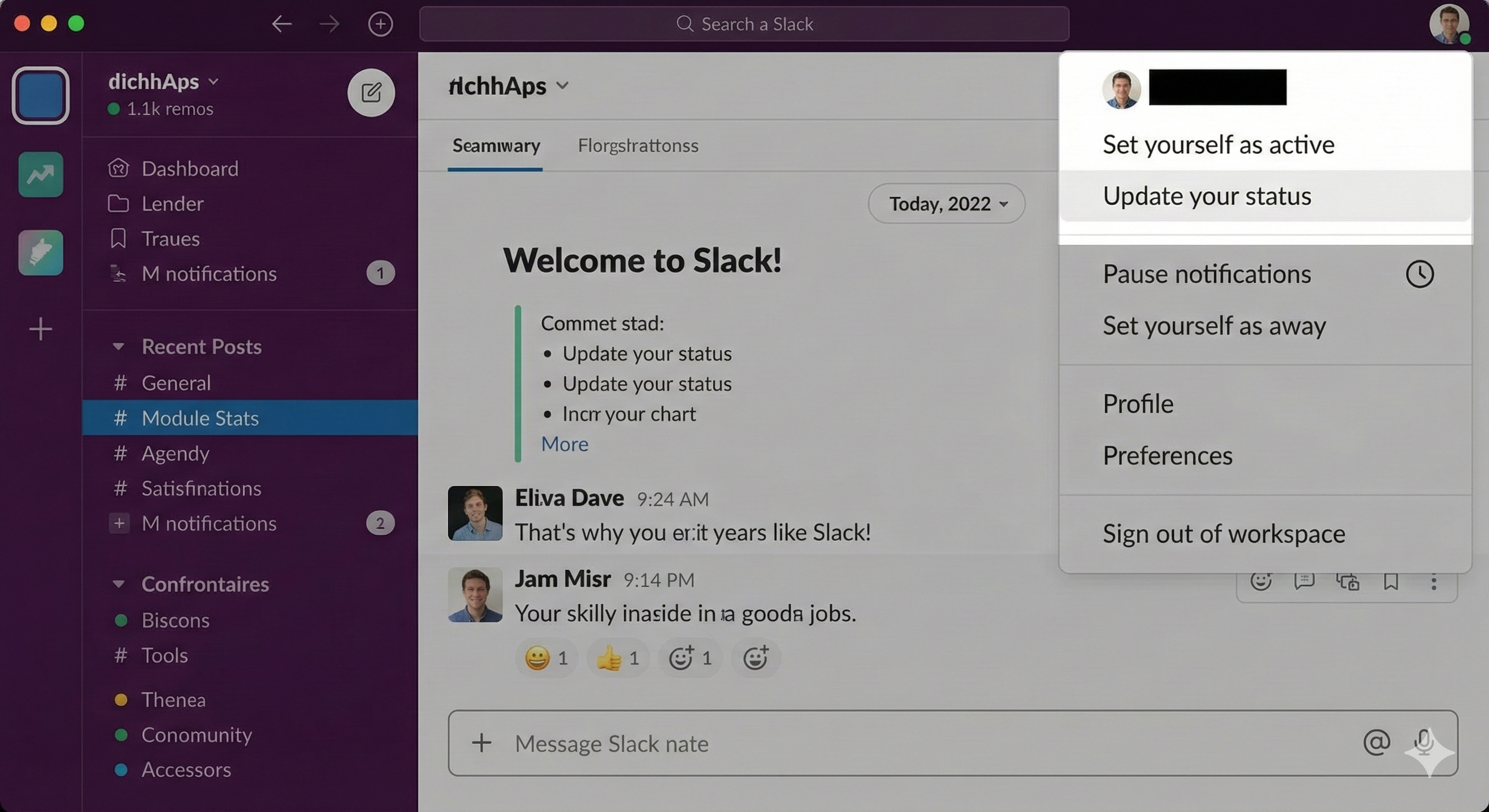
Step-by-Step Instructions
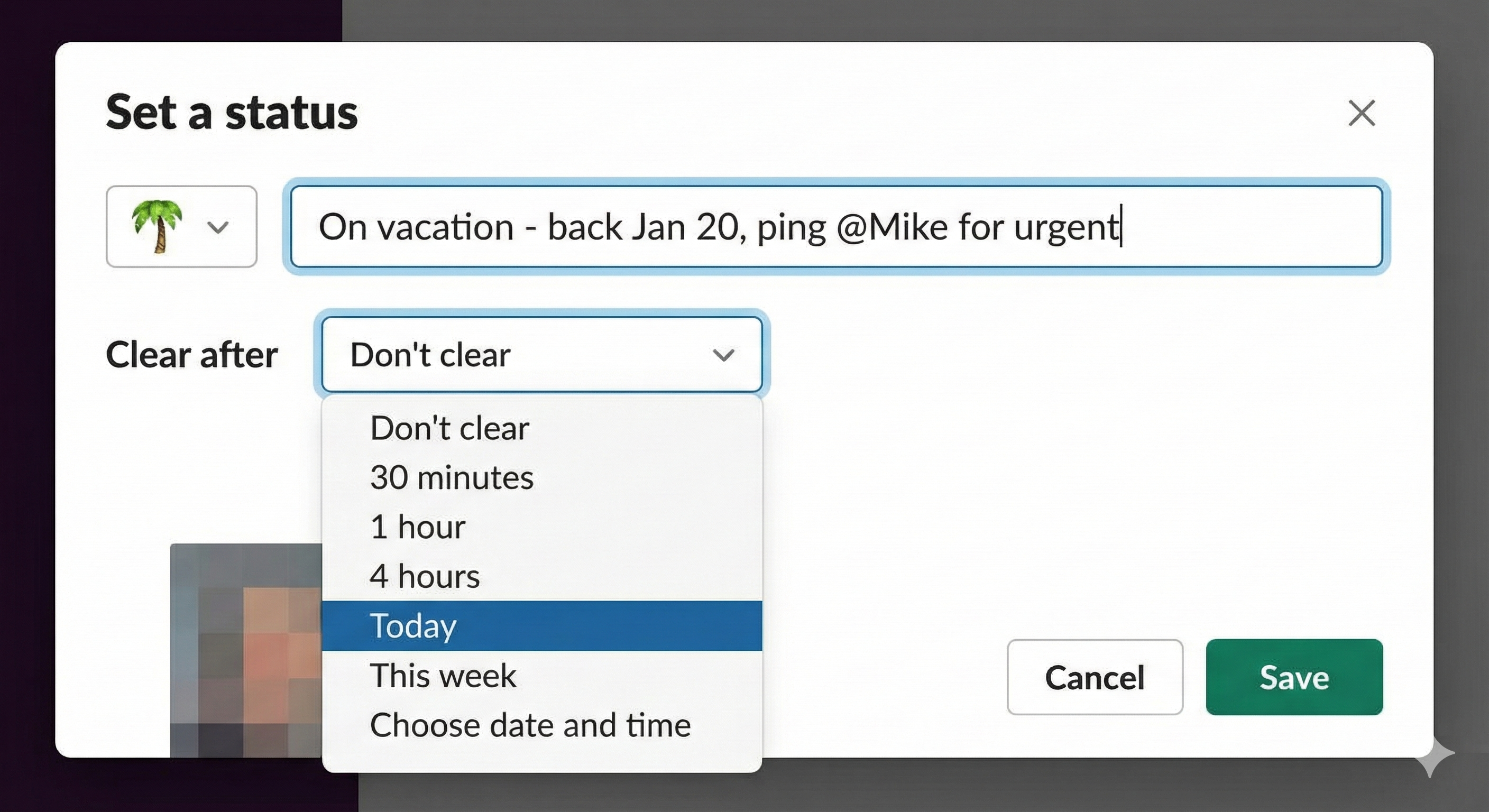
Writing an Effective Status Message
Your status has limited space, so make every character count. A good out of office status includes:
Examples of effective status messages:
| Status | When to Use |
|---|---|
| 🏖️ OOO until Jan 20 - @Mike for urgent | Vacation with backup coverage |
| 🏥 Medical leave - back next week | Health-related absence |
| ✈️ At conference - slow replies | Partially available |
| 🔕 Focus time until 3pm | Short-term unavailability |
Pausing Slack Notifications
Slack에서 다시는 '자리 비움'으로 표시되지 마세요
클라우드 기반. 다운로드 불필요. 노트북이 꺼져 있어도 24시간 작동.
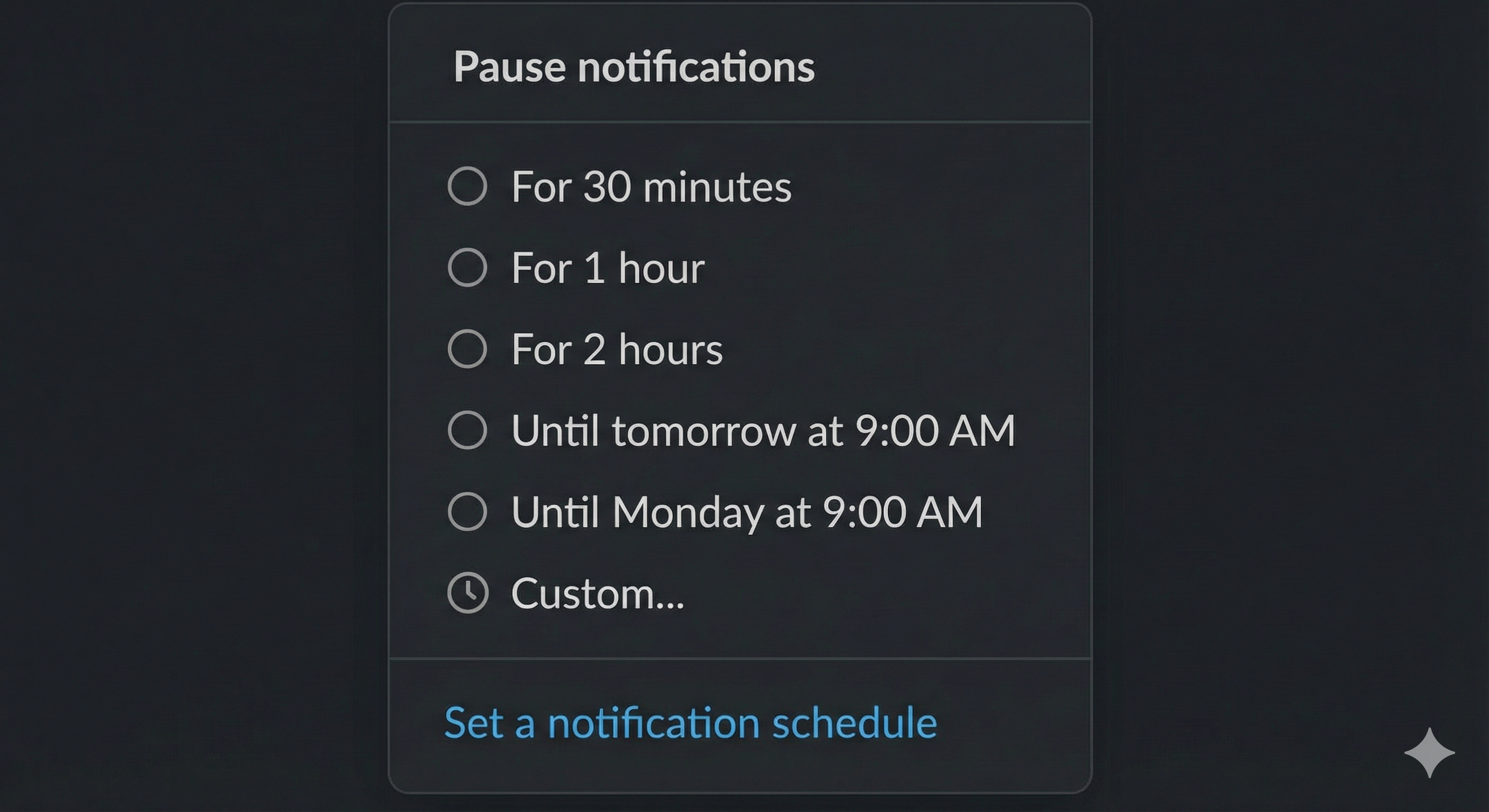
Setting a status is visible to others, but you'll still receive notifications unless you actively pause them. This step is essential for truly disconnecting during time off.
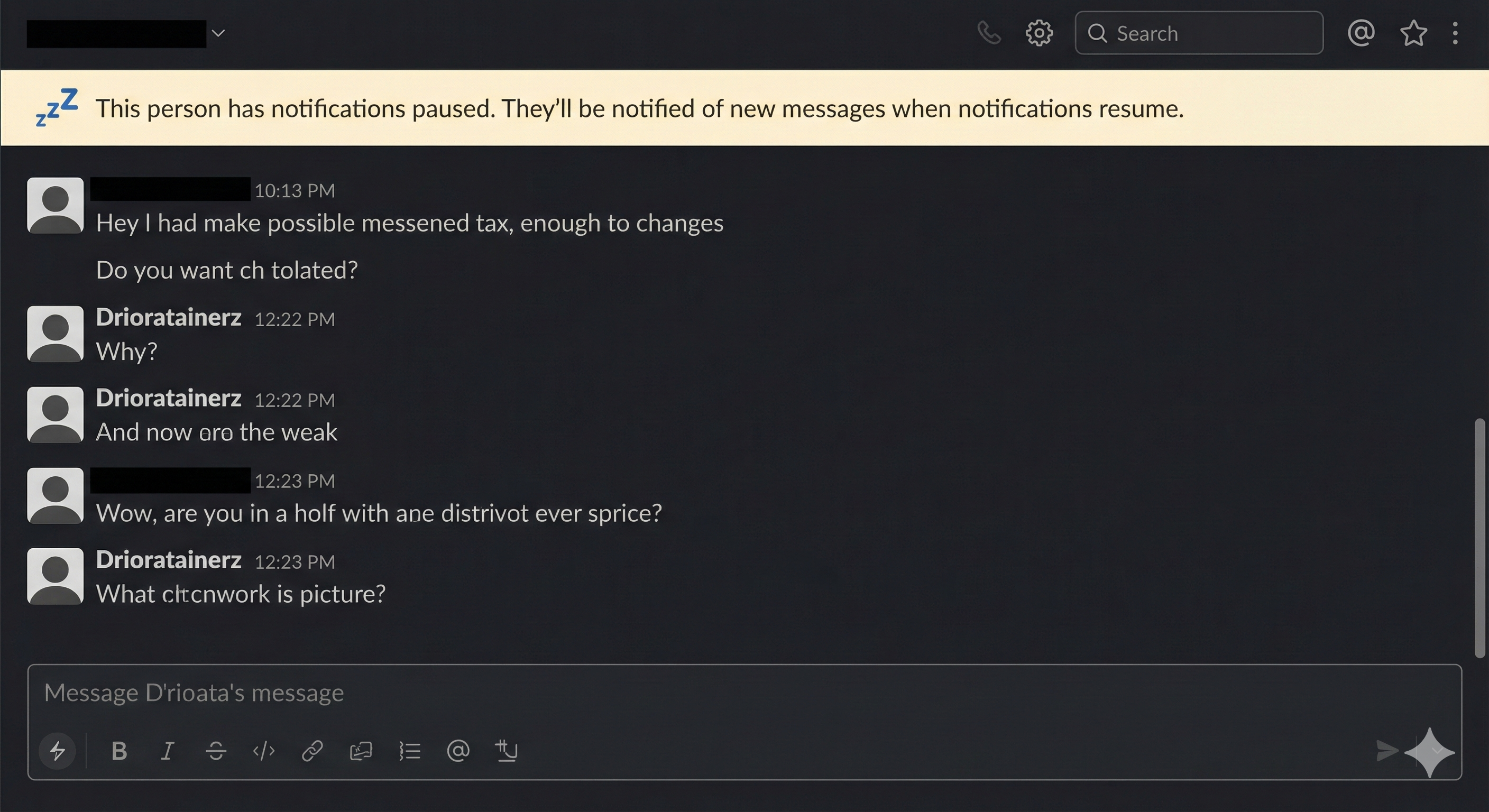
How to Pause Notifications
When notifications are paused, Slack displays a "Notifications paused" indicator on your profile. Direct messages will show senders that you have notifications paused, prompting them to find alternative help if urgent.
Scheduling Do Not Disturb Hours
For regular out-of-office hours (like evenings and weekends), set up a recurring Do Not Disturb schedule:
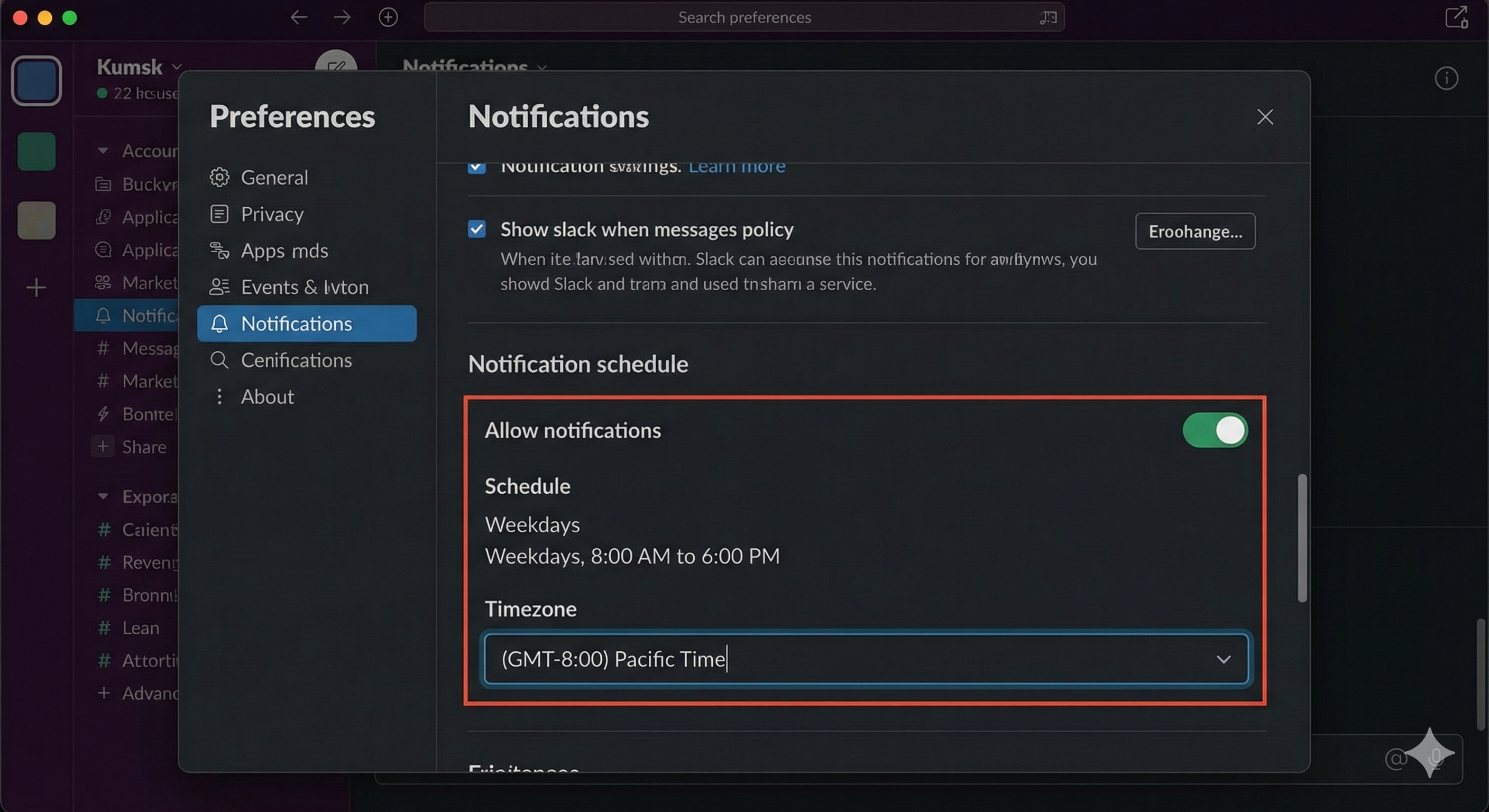
This ensures you're not disturbed during personal hours without manually pausing notifications each day.
Scheduling Status Changes in Advance
Planning ahead? Slack allows you to schedule status changes so your out of office message activates automatically when your time off begins.
Using Slack's Built-in Scheduling
Currently, Slack's native status scheduling is limited to the "Clear after" option, which removes your status after a set time. For more advanced scheduling, consider these approaches:
Option 1: Set your status the night before Update your status before leaving and set "Clear after" to your return date.
Option 2: Use Slack's Workflow Builder (Paid plans) Create a workflow triggered by a specific date/time that updates your status automatically.
Option 3: Third-party scheduling tools Apps like Clockwise or Reclaim can sync your calendar with Slack status, automatically showing you as out of office during blocked calendar events.
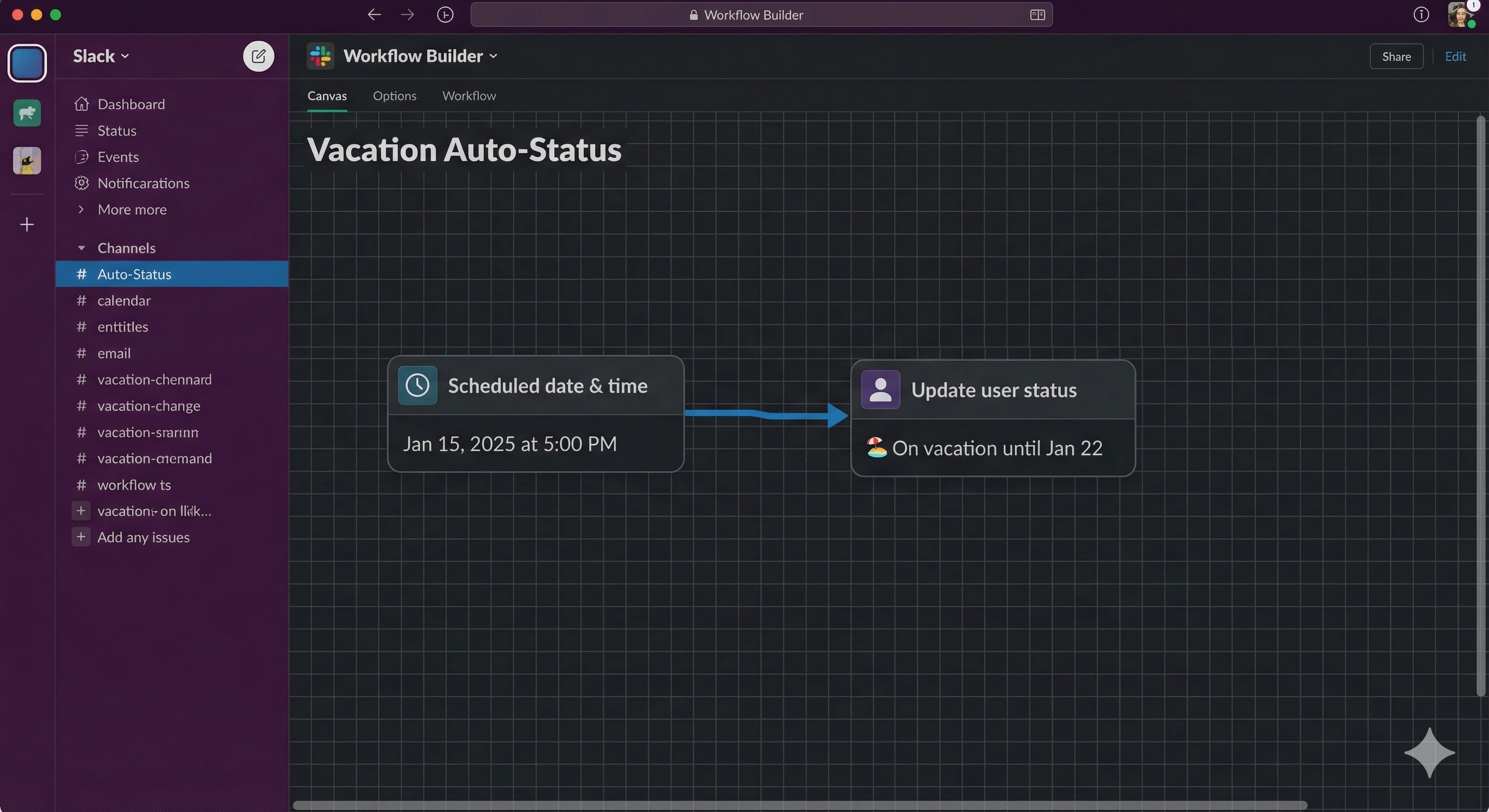
Creating Automated Out of Office Replies
For teams that need true auto-reply functionality—where Slack automatically responds to direct messages—there are several solutions available.
Using Workflow Builder for Auto-Replies
Slack's Workflow Builder (available on Pro, Business+, and Enterprise plans) can create automated responses:
Limitations: Standard workflow triggers don't automatically respond to all DMs. This approach works best for channel-based notifications or when you share a workflow link.
Third-Party Auto-Reply Apps
Several Slack apps provide genuine auto-reply functionality:
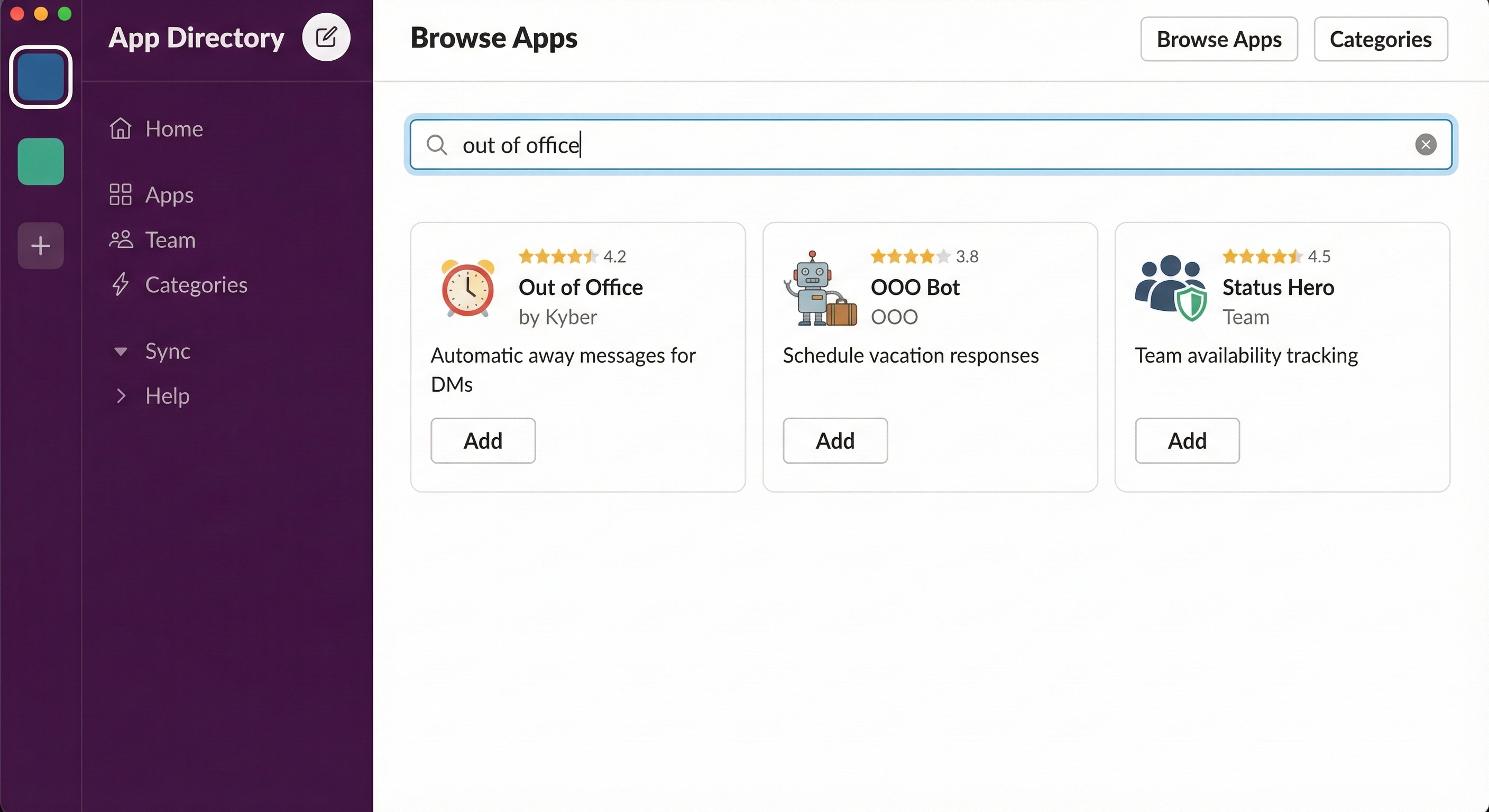
Popular options include:
To install, visit the Slack App Directory, search for "out of office," and follow the setup instructions for your chosen app.
Best Practices for Slack Out of Office Messages
Slack에서 다시는 '자리 비움'으로 표시되지 마세요
클라우드 기반. 다운로드 불필요. 노트북이 꺼져 있어도 24시간 작동.
A thoughtful out of office setup prevents confusion and helps your team operate smoothly in your absence.
Before You Leave
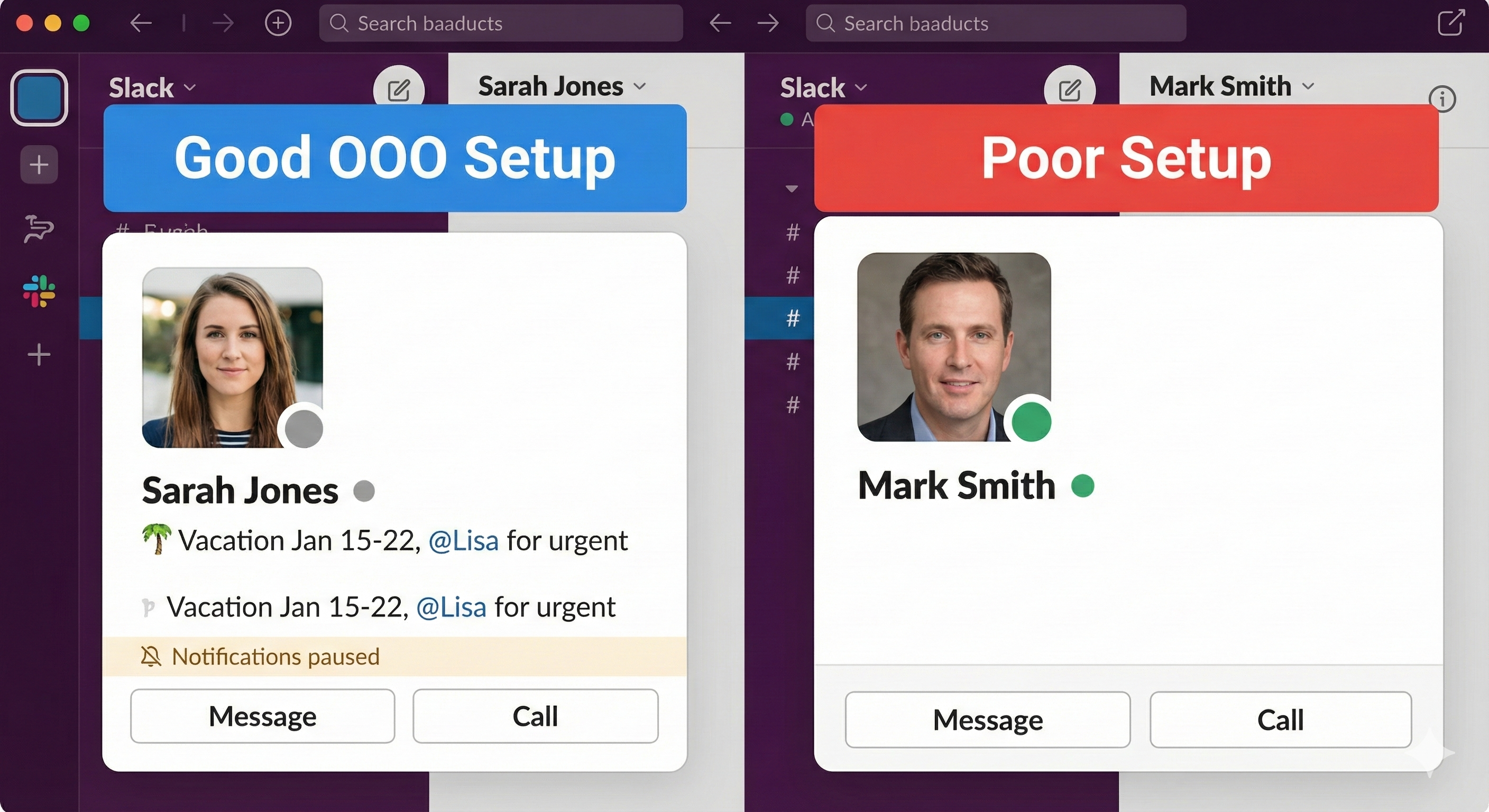
Crafting Your Message
Keep your out of office message professional yet approachable:
What to Avoid
Managing Out of Office Across Multiple Workspaces
If you belong to several Slack workspaces, remember that status updates are workspace-specific. You'll need to update each workspace individually unless you use tools that sync across workspaces.
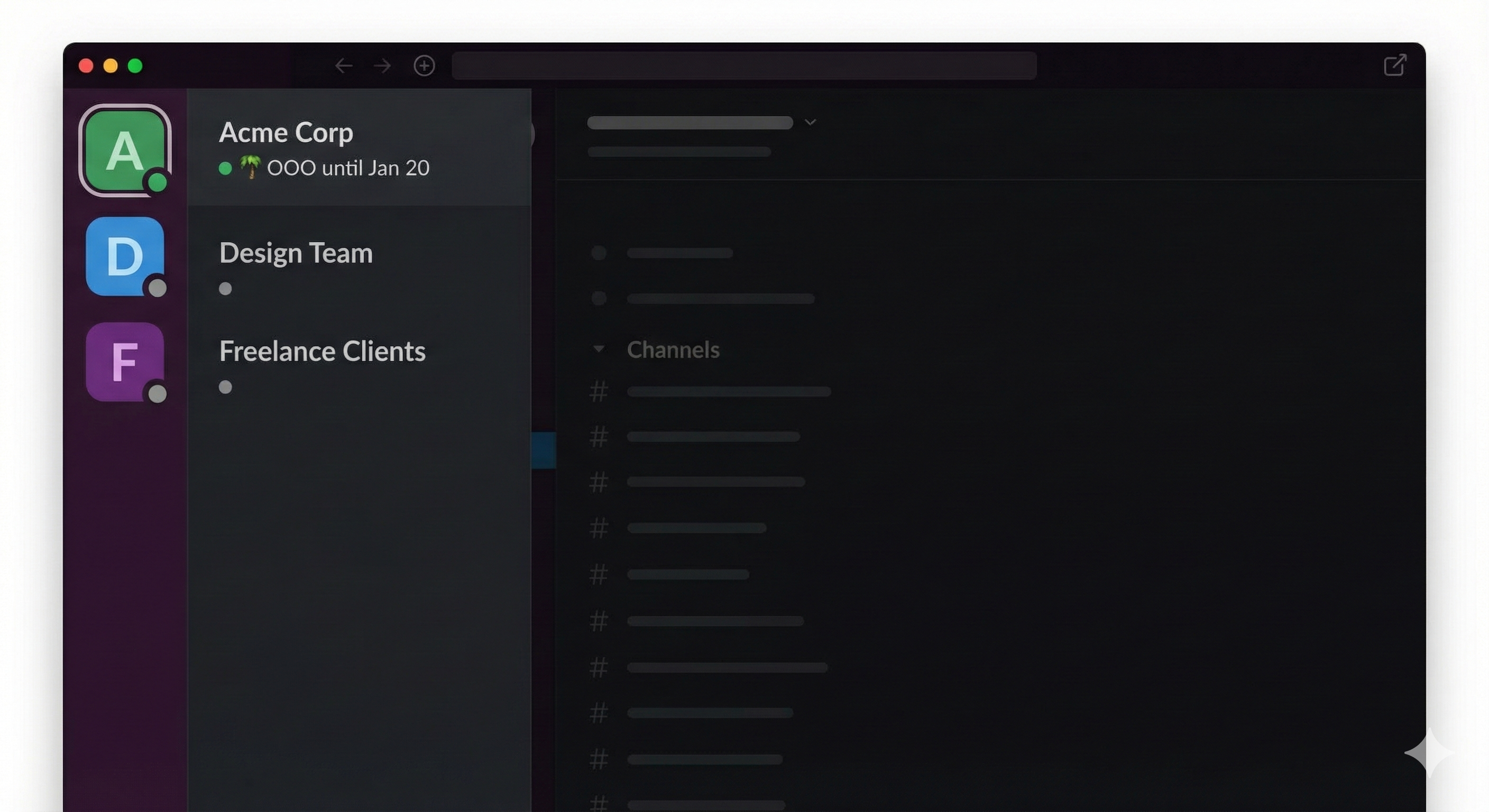
Tips for Multi-Workspace Users
Some Enterprise Grid organizations can sync statuses across workspaces within the same organization—check with your Slack admin about available options.
Returning from Out of Office
Coming back to work involves more than clearing your status. A smooth return prevents the post-vacation message avalanche.
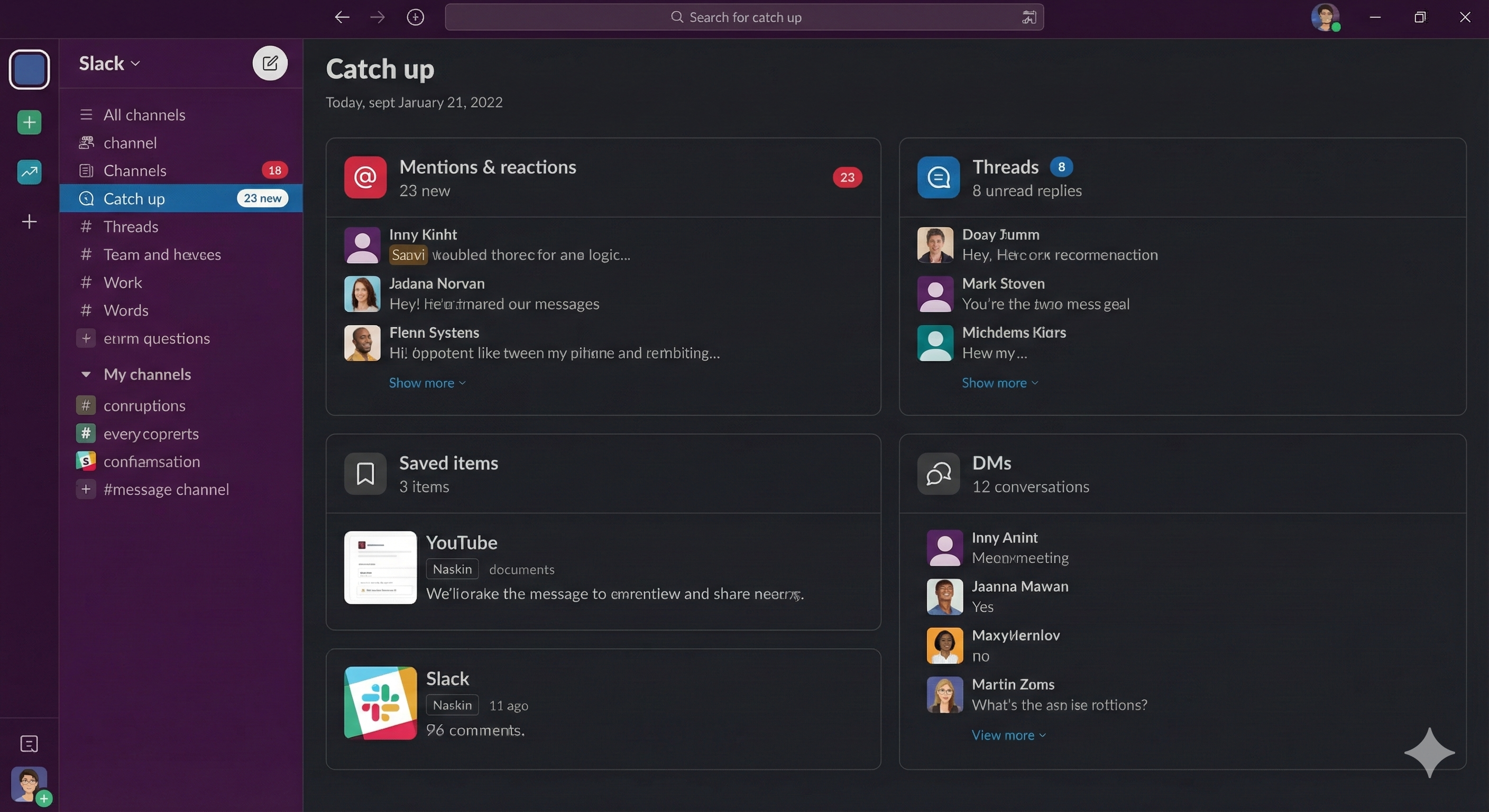
Steps for a Clean Return
Catching Up Efficiently
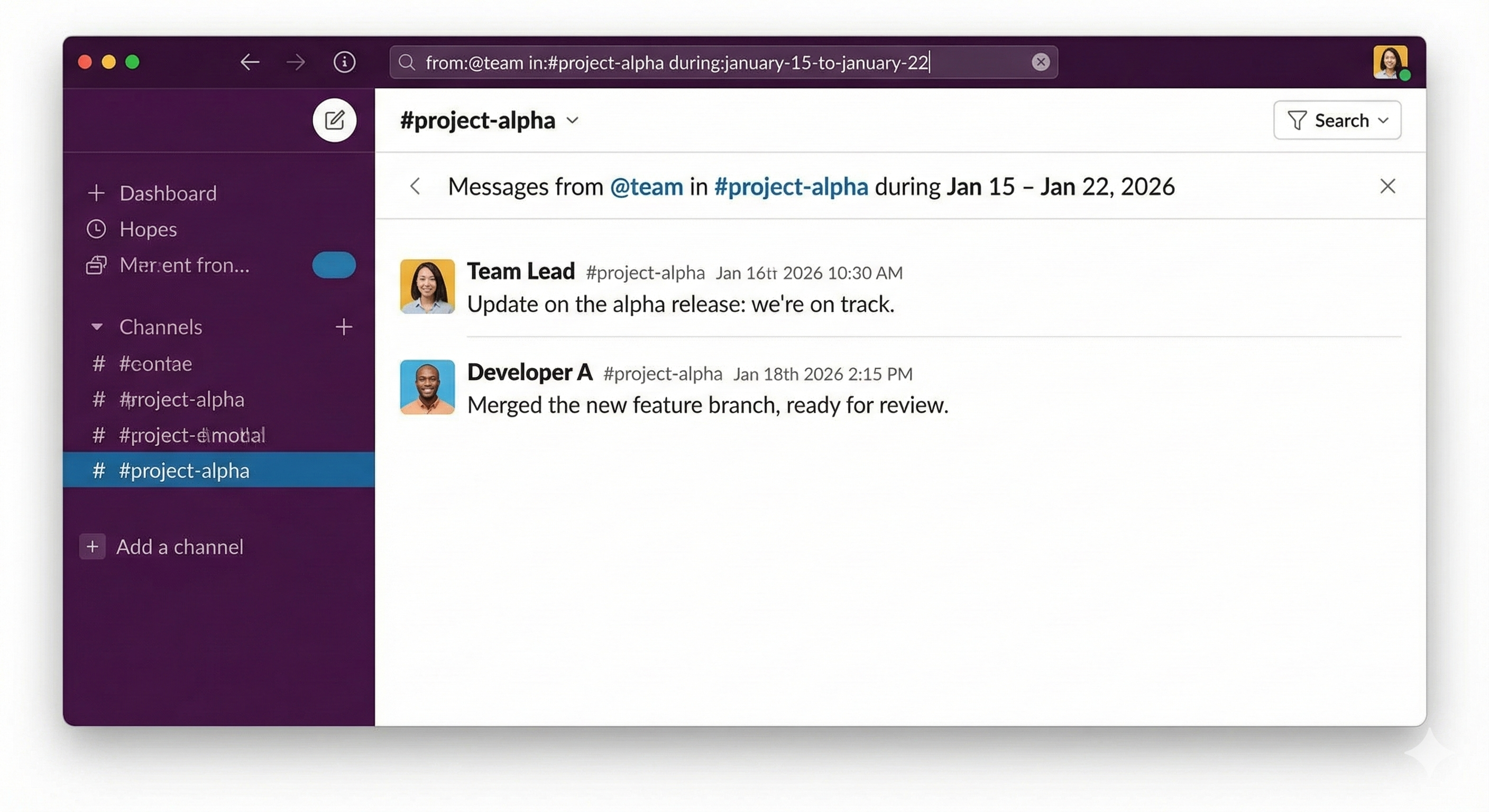
Use Slack's built-in features to catch up quickly:
Alternatives When Standard Options Aren't Enough
Slack에서 다시는 '자리 비움'으로 표시되지 마세요
클라우드 기반. 다운로드 불필요. 노트북이 꺼져 있어도 24시간 작동.
Sometimes teams need more sophisticated out of office solutions than Slack provides natively.
Integrating with Calendar Apps
Connecting Google Calendar or Outlook to Slack provides automatic status updates based on your calendar events. When you block time for vacation, your Slack status reflects it automatically.
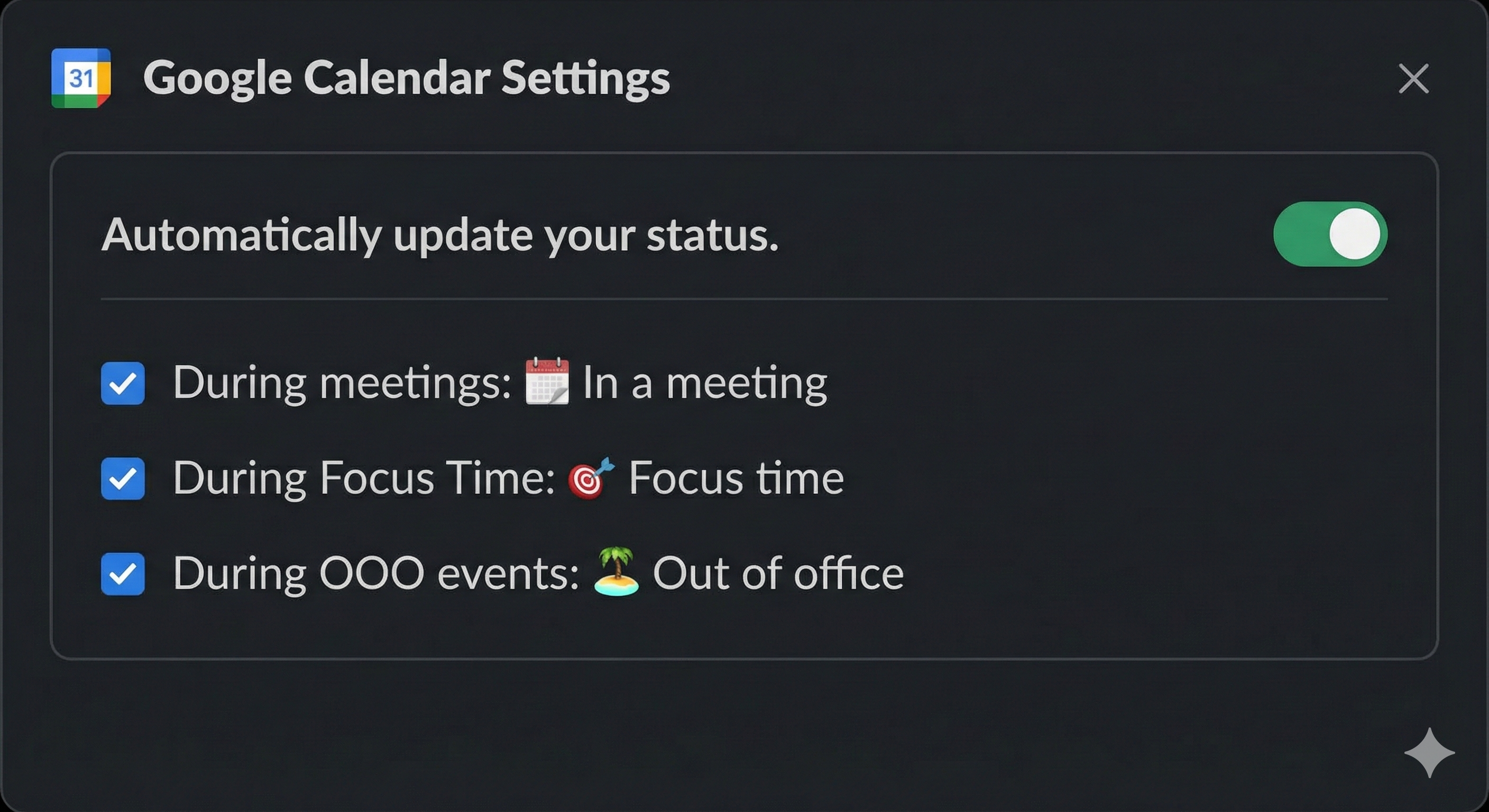
To connect your calendar:
Custom Slackbot Responses
Workspace admins can configure Slackbot to respond to specific keywords. While not a true out of office solution, it can help direct people to resources when someone is away.
Enterprise Solutions
Larger organizations might consider:
Conclusion
While Slack doesn't offer a traditional out of office auto-reply like email, combining status updates, notification pausing, and available integrations creates an effective system for communicating your availability. The key is choosing the right combination of tools for your situation—a quick status update might suffice for a half-day absence, while extended leave might warrant automated replies and calendar integration.
Set your out of office message before you leave, clearly communicate your return date and backup contacts, and enjoy your time away knowing your team has the information they need.
Related Articles
Slack 상태를 위조하는 방법(들키지 않고)
>- Slack 상태를 위조하려고 하시나요? 사람들이 왜 그렇게 하는지, 관련된 위험이 무엇인지 알아보고 실제로 효과가 있는 합법적인 대안을 찾아보세요.
데스크톱에서 Slack 상태를 항상 활성으로 유지하는 방법
데스크톱에서 Slack의 10분 자리비움 타이머를 방지하는 완벽 가이드. 실제로 효과가 있는 방법과 없는 방법을 정리했습니다.
Slack에서 항상 활동적인 상태를 유지하는 방법은 무엇입니까?
Slack이 비활성 상태를 감지하는 방법을 알아보고 마우스를 계속 움직이지 않고도 활성 상태를 유지할 수 있는 안정적인 방법을 찾아보세요.